HTML Character Reference Chart Update

I have just finished updating my HTML Character Reference Chart. Along with updating invalid numerical references 129 through 159 to the valid decimal numbers there are a few new features:

  • different character sets in separate views
  • complete decimal and hexadecimal references
  • entity references for some characters.
  • New Complete Table Section displays all references
  • New Favorites Section displays only your favorites

HTMLChar1

This new version is built with XML and XSLT, making the process of updating information or creating new layouts very simple. I am learning the basics of both right now and it’s amazing how powerful and elegant these simple text files can be.

The Favorites section works with comma-separated URL values. You will have to edit your URL “manually” by adding the decimal, hexadecimal or alphabetical values to the end of the page’s URL. There is an example favorites set to help you get started.

BohemianAlps HTML Character Codes »

Watching Internet TV on My TV

Recently, due to our move and lack of willing to pay for a DVR with our cable subscription, my wife has introduced me to how the big networks are offering all their shows online. It’s great. Really.

Unfortunately, this means my wife has been sitting in our bedroom watching her favorite shows on a 19″ computer monitor hooked up to our Apple G5.

Solution: I found an RF modulator at Wal-Mart for $20 (RCA I think) that lets me hook my laptop’s S-Video output up to our old 30″ CRT. I wouldn’t write any letters on it or do lengthy reading, but video and images look pretty good. Using Linux certainly threw a few curve balls into an otherwise simple setup.

So, how can I too enjoy Internet TV on my old CRT Television?

Well, you are in luck, ‘cuz I did all the hunting around for you. At least if you are running Ubuntu Linux 7.10 on a Thinkpad T42.

Here’s how to use the xrandr tools to start your S-Video out:
mfbernardes.com: Finally I Got S-Video Working My Thinkpad T42
XStrikeForce: HowToRandR

I took Mr Bernardes’ terminal commands and created custom application shortcuts for each separate step that I use frequently:

  1. Activate S-Video
    xrandr --output S-video --set load_detection 1
  2. Start S-Video OUT
    xrandr --output S-video --auto
  3. Turn LCD OFF
    xrandr --output LVDS --off
  4. Turn LCD ON
    xrandr --output LVDS --auto

Then simply go to NBC.com, CBS.com or whatever. Hell, YouTube even.

Another good thing that helps position your video window on the TV for optimal viewing is the ZOOM capabilities of Compiz-Fusion. So look into that. You can get it set just right without too much visual noise around the video.

Wait a second, all my favorite shows are on ABC…

If you haven’t figured it out yet, ABC has a custom video player that is not available for Linux. That’s a deal breaker right there. Especially since that’s my wife’s favorite channel currently.

Luckily, the good folks over at WINE are doing a smash-up job. The trick is to install the Windows version of Firefox over WINE and then watch ABC from Firefox/Windows. Check out the following info for details:

JDESLIPPE

It’s a pretty clever solution. Not too many details there.

What about audio?

The RF Modulator that I bought has inputs for component audio that will then pass to your TV via COAX. I actually have a receiver stereo, so I push the audio through that from my laptop for the full experience.

That was simple!

I don’t guarantee this will work, but I wish you luck if you choose this challenge.

IEs4Linux Also for OSX on Intel

I have been using the IEs4Linux system for a while now to assist in developing websites. It allows you to install various versions of Internet Explorer in Linux. It’s great for testing websites against the many bugs in IE as you develop them.

Recently they have developed a version for OSX on Intel machines.

http://www.tatanka.com.br/ies4linux/news/49

You have to install Darwine and X11 on OSX to use it, but after that it seems pretty easy. I am not so fortunate as to own an Intel-based Mac, so I can’t test it for you.

Wine info
http://wiki.winehq.org

Darwine info
http://darwine.sourceforge.net/download.php

Wine on OSX info
http://wiki.winehq.org/MacOSX

Create and Manage Professional Letters with OpenOffice and PDFTK

I have slowly been learning the ropes of professional presentation for my freelance work. Design school taught me a thing or two about designing letterhead and the importance of looking professional and organized (sort of like flexing your muscles before a wrestling match). However, they certainly didn’t teach anybody how to actually put those designs into use in an organized workflow. Word-processing programs were the devil. As a result of their design program zealotry I have a lot of resumes, cover letters and general business letters that are Pagemaker, InDesign, QuarkXpress and Illustrator files. This isn’t what these programs were built to do.

These programs were built for carefully typesetting layouts

This problem makes the process of writing a letter too complex. I know what you’re saying. You think I’m lazy. You’re wrong. I have great powers of determination and focus, but usually I get distracted by details. Suddenly I’m typesetting a bill and not just writing up a bill. Before I know it I’ve shot the afternoon twiddling with letter-spacing on a 6 hour project billing.

The solution to this ease of distraction is to use the right program for the task at hand. A word-processor is a powerful tool and can save you a lot of time without compromising your concern for appearances. How do they save me time?

  1. Page Templates
  2. Style Sheets

“But my layout program has that and MORE!”, you say. Well, that’s my point. You don’t need more to write letters.

WYSIWYM

One of the cool ideas I came across in my Linux/Open-source self-education is the acronym ‘WYSIWYM’. We’re all familiar with WYSIWYG (What You See Is What You Get) and that applies to all of our layout and common word processing programs. WYSIWYM stands for ‘What You See Is What You Mean’. A subtle but important difference.

The program that is most popularly associated with this concept is called TeX (pronounced ‘tek’). If you’re interested in the history, check out Wikipedia. My introduction to TeX was actually through another program called LaTeX which simplifies the creation of TeX markup. In LaTeX you simply see the text with no formatting. All you see is a definition of document structure to the left of your content (this line is a Headline 1 format, that line is a blockquote). No nitpicking about what font and linespacing. Unfortunately, this program had a big learning curve and I don’t recommend it for most people. Plus, when it came to printing and generating PDFs I ran into a lot of missing elements that needed to be installed separately. Not easy to setup.

Okay, so, what’s that have to do with using a word-processor? Well, you can use a w-p in the same way via style sheets. Here’s what you do:

  1. Take an afternoon to design your letterhead in your layout program of choice.
  2. Figure out what the margins on your letter have to be to fit your letterhead format.
  3. Save a pdf of your letterhead design as though you were printing blank letterhead.
  4. Open a new document in OpenOffice (or MSWord if you must…) and set the margins accordingly.
  5. Now type out some example copy or use an existing letter to work out your stylesheet.
  6. Design all the styled elements that you foresee using in your letters. Take your time. Get the after-paragraph-spacing and typefaces all figured out so that it looks beautiful. Make sure that you are using the ‘Styles and Formatting’ palette or window and modifying those elements with your changes.
  7. Delete your test content and save this document as a TEMPLATE somewhere handy.
  8. Every time you want to right a letter just open a new document from this template and write your letter with a WYSIWYM state of mind using your preset styles

Now your letterhead is one file and all of your little letters, bills and requests can be saved in simple word-processor files. If you’re especially concerned about future-proofing your letters, check out OpenOffice and the Open Document Formats. From Wikipedia:

OpenDocument benefits from separation of concerns by separating the content, styles, metadata and application settings into four separate XML files.

So, worst case scenario: after the demise of OpenOffice twenty years from now you are left with an ISO-standard document format that will most likely be supported by any respectable word-processing program that exists at the time.

Actually, even worse: ODF isn’t supported at all so you are left with the option of opening the XML file containing only the basic text content of your letter which you will have to reformat.

Either way what’s the chance of your InDesign CS3 binary format file being accessible that far in the future? Good luck trying to pull the plain text content of your letter out of a binary file!

Merging the Letter with the Letterhead

On Linux there is a great command line program called ‘PDFTK’ or the PDF Took Kit. It does some cool things but my only use for it right now is to merge our Letterhead.pdf with our LetterToBob.pdf. It’s simple as pie, but I want to look into creating a simple GUI for it. A little dialog window can’t be that difficult to program, can it? 😀

First install PDFTK via Apt-Get or Synaptic if you are on a Debian-based Linux distribution. Otherwise, get on Google and look into getting it. Sorry for the lack of support at this stage.

Once you have it installed, open a terminal window. For this example I am going to save my two PDFs to my desktop and then use PDFTK to merge them from there.

Go back to the Terminal, change to your Desktop directory (cd ~/Desktop if you don’t know) and type the following:

pdftk LetterToBob.pdf background Letterhead.pdf output LetterOnLetterhead.pdf

Break It Down!:

  1. First tell the terminal which program to use
  2. Specify your original PDF document by filename
  3. ‘background’ specifies the function of PDFTK to use
  4. Specify the background PDF document by filename
  5. ‘output’ tells the program what to name the product of the indicated action
  6. Specify the filename for the product of the PDFTK background action

Click enter and you will have a new PDF named ‘LetterOnLetterhead.pdf’ on your desktop shortly.

I don’t know, but I can only hope that Adobe Acrobat Professional can also merge PDFs in this way.

Now you have a professional letter on your own custom letterhead in PDF format for emailing or printing. The ODF files are simple to keep organized and your letter head is easy to keep track of on one layout file. This could be accomplished with layout tools as well, but this is how I do it and thought other people might benefit from hearing about it.

Adobe CS3: A Real Dud

As you can guess, I’m not all that impressed with CS3.

Photoshop made some great improvements to the Layers Palette

  1. You can finally temporarily select multiple layers with the ease of shift or command+click
  2. Creating a New Group with several selected layers is Command+G
  3. The Move tool can be sensitive to groups if you wish it so. Nice to be able to shift things around without constantly referring to the Layers Palette

I don’t use InDesign or Illustrator enough to say, but the most obvious feature across the CS3 club is that they are even bigger apps than before and they take even longer to startup than before. Oh, and they’re sluggish too. Why is editing slices such a laborious task? CS handled easily.

Then tonight I was setting up my Creative Director’s new 17″ MacBook Pro (I’m a Linux guy and all, but this is still sweet) and discovered that these apps performed much better on the new MacIntel. So maybe it’s more about being on an old Dual Proc 2GHz PowerPC with 2GB of RAM DINOSAUR that’s causing most of my disgust.

Dear Microsoft, Do You Like Being Hated?

From Microsoft’s Improving E-mail Deliverability into Windows Live Hotmail pdf:

Q: If my message displays properly in Hotmail, will it look the same in Outlook?

A: No, we recommend that messages be tested with both Outlook 2003 and 2007 as well as Hotmail as messages may not be rendered the same way in all e-mail clients and services. Outlook 2007 no longer support style sheets the same way previous versions of Outlook did. This means that even if HTML content looks fine in Internet Explorer and Outlook 2003, it may not in Outlook 2007.

I think they are referring to their blunder of switching to the Word rendering engine for Outlook 2007’s HTML emails. –Jason

Here are a few recommendations for improving Outlook rendering (p16):

  1. Do not use background images. Background images, whether specified in the <body>, <table>, or <td> tag, cannot be used because of inconsistencies among e-mail clients, most notably Outlook 2007.
  2. Do not use CSS (cascading style sheets), inline styles or JavaScript. Cascading style sheets, where the styles are defined within the Web page itself, are only fully supported in most e-mail clients. Attached style sheets are not supported at all. Additionally, Web e-mail clients such as AOL Webmail and Gmail change or comment out style tags, resulting in unpredictable formatting. As a result, we recommend that you use only basic HTML tags. (For instance, to underline text, use the <u> tag, for bold use the <b> tag.)
  3. Inline style attributes are your only option. Use only the most basic style attributes to designate font size, color, and type, and use them within basic HTML tags (do not use <div> or <span> tags). Do not use styles to set table or row heights or any spacing. Do not define your style elements within the <head> tag of the document (Hotmail will entirely strip this out). JavaScript is not supported in any e-mail client. Do not include any JavaScript, including onClick=”return(false);” in your HTML. Jason says:Nothing new, but why?!…
  4. Set table width to 600 pixels max. The convention for HTML e-mail is to limit a set table width to 600 pixels. Though a wider table may render fine in Outlook or on a high resolution monitor, users with older systems or who choose an 800 X 600 display setting will not be able see the entire width of the e-mail.
  5. Do not use the <body> tag to set any essential attributes. Some Web e-mail clients (notably Yahoo and Hotmail) strip out the BODY tag within e-mails completely. You should not include any attributes in the BODY tag. To set values such as background color, use the BGCOLOR attribute inside the TABLE or TD tags. Jason says:Nothing new…
  6. Use HTML character names. Many e-mail clients won’t display raw 8-bit characters correctly (they’ll show up as question marks or squares instead). As a result, you must use HTML codes for these characters. Use only the HTML names, not the numeric values. Jason says:Nothing new…

In other news, not much has changed. I have no understanding for the email client industry’s bias against CSS. It makes no sense and we are all now dumber for having realised this is their current stand on the issue.

Good News: Yahoo Mail supports CSS quite well.

Speed Up OpenOffice/NeoOffice

I’m still checking these settings to see how much improvement they offer, but it sounds good. This was stated on Digg today in a comment. Look for ‘wipeout140’. Otherwise, just read my post :D.

Go to the OpenOffice/NeoOffice Preferences window:
Reduce the number of Undo steps to a figure lower than 100. 20 or 30 steps suggested.

Under Graphics cache, set Use for OpenOffice.org to 128 MB (up from the original 6MB).

Set Memory per object to 20MB (up from the default .5MB).

Set the number of objects under Cache for inserted objects at 20.

Now highlight Java on the left panel, uncheck Use a Java runtime environment

Let me know if this works or if you have a better idea.

Logitech MX310 and Ubuntu

Logitech MX310 Button Map

I spent some time setting up my Logitech MX310 mouse to work with Ubuntu and Beryl. The Beryl Settings Manager provides an amazing amount of customization IF you can find what you are looking for. Beryl is making a lot of progress in the interface, but it’s a very complicated mechanism they’ve built and there really isn’t any way to simplify it. So you simply have to get your hands dirty. However, I am hoping this post can help you out. With a little help, your MX310 will be invoking Beryl’s Window Picker (a lot like Expose in OSX) with the click of a button.

First, you have to know which button is which. My little drawing on the right illustrates how my system sees the MX310 buttons. This may be different for you depending on your X configuration. I can’t recall customizing my setup, so I’m hoping I have a default configuration. Note that the very top button and the scroll-wheel-click register as the same button. 🙁

Second, you have to go to the Beryl Settings Manager. I would start with disabling a few default settings that simply have no purpose and only create confusion when they are accidently invoked: Window Opacity and Window Saturation. It’s cool what Beryl can do with these features to create feedback, but being able to see the window below my active window via transparency is perfectly worthless. Let’s get started:

  1. Open Beryl Settings Manager
  2. Go to:
    General Options/ Shortcuts/ Keyboard and Mouse/ General Options/ Bindings.

    Increase Opacity Disable
    Decrease Opacity Disable
    Increase Saturation Disable
    Decrease Saturation Disable
    Hide All Windows And Focus Desktop <Control>Button2
  3. Go to:
    General Options/ Shortcuts/ Keyboard and Mouse/ Scale/ Bindings.

    Initiate Window Picker for All Workspaces Button2
  4. Congratulations You’re Set!

Let me know if this was helpful or if you have discovered a different configuration.


Beryl: OSX Exposé for Linux and a Whole Lot More

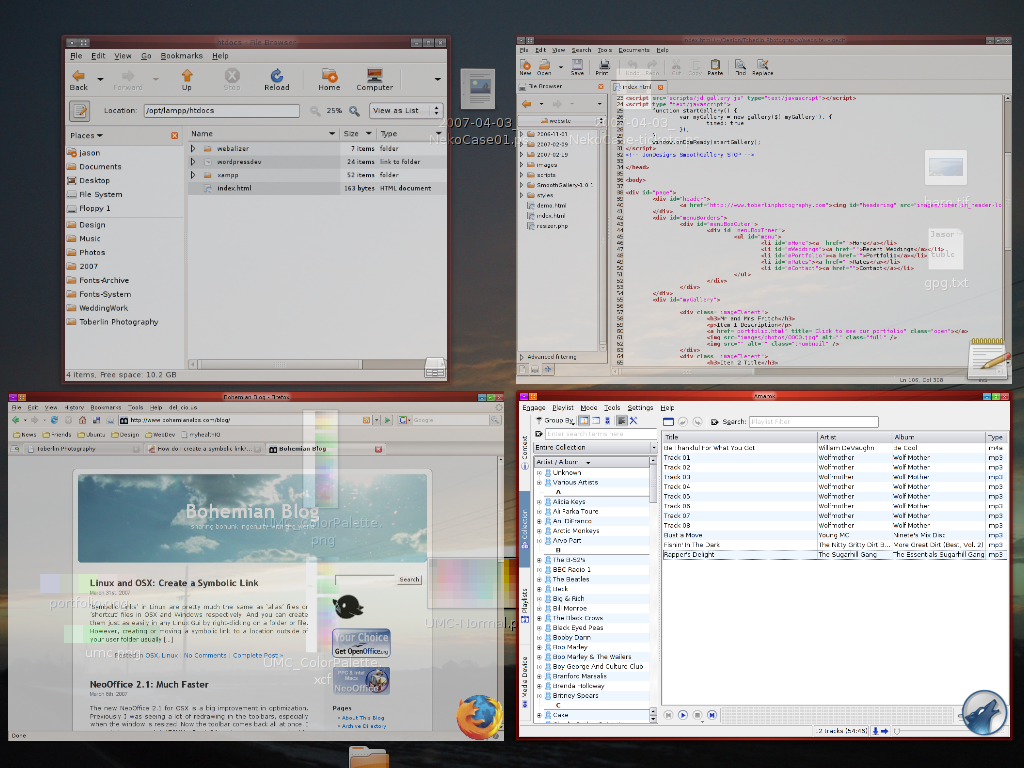
I posted a while back about ‘Skippy’ for acquiring that OSX Expose goodness in Linux. Well, since then I’ve had the luxury of using Beryl for about a month. It’s got a few bugs since it’s still developing, but very usable. Some of it is just eye candy, but things like the minimization of all of my active windows so I can find the one I’m looking for is very helpful. I use Expose a lot at work on OSX 10.4 and so having it at home makes for excellent consistency. Here’s a great video of every feature I can think of:

Beryl on Ubuntu via YouTube

And here a few screenshots from my desktop.

Application Switcher
Beryl-AppSwitch

Expose-ish
Beryl-Expose

Desktop Cube
Beryl-Cube

I hope you enjoy the pictures. I’m certainly enjoying the experience.

Linux and OSX: Create a Symbolic Link

‘Symbolic Links’ in Linux are pretty much the same as ‘alias’ files or ‘shortcut’ files in OSX and Windows respectively. And you can create them just as easily in any Linux Gui by right-clicking on a folder or file. However, creating or moving a symbolic link to a location outside of your user folder usually involves being the ‘super user’ or using ‘sudo’. It’s so simple to do with the Terminal, I can’t see trying to work around within the gui. So, I hope you find this helpful.

I found this info here thanks to a good friend:

http://help.hardhathosting.com/question.php/95

It’s such a good note to keep around that I wanted to have it on my own site.

In the Terminal enter the following:

ln -s [TARGET DIRECTORY OR FILE] [SHORTCUT]

For example:

ln -s /xampp/htdocs/work /Users/username/xamppwork

This points a symbolic link located in your home folder (xamppwork) to “/xampp/htdocs/work”

I am finding this to be very useful for using XAMPP to develop dynamic sites or to work the bugs out of WordPress themes. I have my working folder inside my Documents directory and then place a symbolic link to that folder inside the XAMPP server’s ‘htdocs’ directory. Pretty slick.

NeoOffice 2.1: Much Faster

The new NeoOffice 2.1 for OSX is a big improvement in optimization. Previously I was seeing a lot of redrawing in the toolbars, especially when the window is resized. Now the toolbar comes back all at once. I upgraded my parents’ 450MHz Dual G4 and noticed a considerable improvement. I’m looking forward to seeing the difference on my fiance’s PowerBook G4 400MHz.

It’s still in the ‘Early Access’ stage, so you will have to give them some money to get it, but it’s a great tool and definitely worth supporting. Here’s the site:

www.neooffice.org

Internet Explorer 6 and 7:Mess Up WordPress Image Uploads

I just ran into a problem on a photo site I have made with WordPress. The photo site is a photo web log where there are multiple authors that contribute one photo at a time (or so I prefer!). I don’ t know how to edit WordPress’s setup so that the upload process creates an image to a custom width rather than the default thumbnail. With that in mind, every author has to click ‘Write Post’ and then upload their pre-sized to 500px wide image to the site. From there they have to click on the ‘upload’ menu’s preview of their image. The one click brings up a menu on top of the photo that looks like this:

  • Using Thumbnail
  • Not Linked
  • Send to Editor
  • Delete
  • Close Options

If you click on any of the items they will toggle to another option or execute the stated function. In my photo site’s case we change it to the following:

  • Using Original
  • Not Linked
  • Send to Editor
  • Delete
  • Close Options

Then we press ‘Send to Editor’ and an img tag is sent to the Editor with the correct settings. Everything is as it should be (except that it excludes dimensions and that agitates the standards-loving person that I am, but I let it slide for the sake of ease of use). However, when using Internet Explorer 6 or 7 something funny happens.

  1. The ‘width=’ option IS being used, but without quotes around the contents (the same for the alt setting) and it’s set to ’96’ which is basically the thumbnail width.
  2. The file path to the ORIGINAL is provided in the alt specification while the src specification remains pointing at the thumbnail file.

My friend was banging his head against the wall trying to figure it out. Once I discovered this problem I simply suggested that he install Firefox. 😀

In conclusion, I don’t know a lot of people that use WordPress in this way, so maybe it isn’t very well known. Maybe it has something to do with my theme, but that shouldn’t be the case, since it’s within the admin side of the site. Anyway, maybe this write up will save somebody a headache.

OSX Exposé for Linux with Skippy

Expose on Linux with Skippy 01

Like any OSX-turned-Linux user, I’ve been missing certain features. The most obvious one is definitely Exposé. At work I’m still using OSX 10.4 with the scroll wheel-click set to invoke Exposé. I have a LOT of windows open plus I have a dual monitor setup, so it’s even worse. Exposé really shines in that situation. Generally, however, I find myself more focused when at home on my good-as-new-used Thinkpad T42 running Ubuntu Edgy. I don’t have anywhere near as many applications running, but that feature seems like it should be there, especially when I have my Logitech MX310 multi-button mouse plugged in.

Last night I found myself getting that I should be installing cool new software instead of doing my work itch. It’s a bad habit that I can only guess plagues many Linux noobs after the long journey of installing every cool free software they can dream of and customizing their desktop to their very exceptional taste. I think it comes out of having almost no such options on commercial operating systems. The software is usually very expensive (though there’s a lot of open-source stuff available lately) and customization is fairly limited. So I started searching for something resembling the title of this post. I found three items with supposed similar functions for Linux:

I would love to have tons of data on all three, but I don’ t have time right now. It looks like Expocity was a Metacity hack and maybe it didn’t work that well. I can’t find much info on it. Kompose is supposed to be very nice, but is for KDE. Granted, I use a lot of KDE applications already on my Gnome desktop, but they have their share of quirks and something like Kompose is very intertwined with the KDE desktop and Qt. Kompose looks pretty sweet. Yet another reason for me to switch to KDE.

Skippy wins by default. The brief research I did on the matter lead me to a blog mentioning that Skippy could be installed in Ubuntu with Synaptic. Shit man, that’s all you had to say!

Expose on Linux with Skippy 02

So off I went to Synaptic. It’s that easy. There is no gui management program though. All you need to know is that F11 invokes it to do its thing. I guess that could cause problems with some applications, but I don’ t use my F11 key much at all. Apparently there should be some kind of config file in your home directory called ‘.skippy’ or something similar. My system does not have that to my knowledge and I’ll be damned if I go looking through the entire filesystem searching for it. F11 is fine.

I did have to go to the Terminal and enter ‘skippy’ to get it running. Open a terminal, type ‘skippy’, press enter and then see if pressing F11 invokes a display of all of your open windows in a grid like the screenshots shown here. Once that was figured out, I went to System Preferences/ Sessions and added the command ‘skippy’ to my startup programs. Et Voilá!

To summarize: install Skippy via Synaptic, activate skippy via terminal and set skippy as a startup application from within the System Preferences/ Sessions dialogue.

Caveats: If you use Firefox with tabs, get ready to be disappointed. Apparently skippy takes an initial snapshot of one of the pages and that’s that. Doesn’t matter which one you have active at the moment. Skippy is damn near perfect with full display-filling windows, but small windows effectively get used as part of the preview of whatever window was behind it. I even had a moment when my spreadsheet window was actually represented by an image of a web browser showing a web site.

Now if only I could map one of my unused mouse keys to the F11 key. If I can figure THAT out, I’ll have something to talk about.

Migrate Thunderbird from WindowsXP to Linux or OSX

Using Mozilla Thunderbird over other email applications is mostly a matter of preference. However, the fact that it is an application that runs on Windows, OSX and GNU/Linux is a very big reason for using it rather than other similar applications. Not only is it running on these operating systems, but it is extremely easy to move your mail and all of your settings to another computer and/or operating system.

I discovered this after temporarily moving one of my sisters onto my G5 after her Windows machine stopped booting. I was able to use the Ubuntu 6.06 live cd to access her hard drive and copy all of her important documents to my iPod Mini.

The files you need to retrieve from the Windows PC are in the following directory:

Documents and Settings/
<username>/Application Data/Thunderbird/Profiles/xxxxxx.default/

These are the files you need from there:

Address Book: abook.mab
Preferences: prefs.js
Mail: Mail (folder/directory)

It is probably also a good idea to go to Address Book while in Thunderbird and export your addresses to one of the more universal formats like ldif or csv. I won’t make any promises if you try to import them to another email application, but you can at least open those with a spreadsheet application if all else fails.

Keep those files in a safe place or back them up along with anything else that’s important to you. Now go to the new machine or go ahead and install another operating system, whatever. On the new system install Thunderbird and then load it and walk through the account set up with some dummy info. I do this so that when I go into the directory to find the place for my old files to go there’s something there for me to replace. It also reaffirms that I am putting them in the right place.

Close Thunderbird after you finish the account set up. In your file browser find your Thunderbird files. Following are locations for those files in different OSs to the best of my knowledge:

OSX:
HD/Users/<username>/Library/Application Support/Thunderbird

Windows:
C:/Documents and Settings/<username>/Application Data/Thunderbird

Ubuntu:
/home/<username>/.mozilla-thunderbird
(Most Linux OSs will be similar. Note that .mozilla-thunderbird is a hidden file. In most Linux file browsers there is an option under ‘View/Show Hidden Files’.)

Okay, now all you have to do is copy your old files to this directory and in doing that you will replace or overwrite the existing files:

Address Book: abook.mab
Preferences: prefs.js
Mail: Mail (folder/directory)

Once that is done, load Thunderbird and it should look like you never left home!

I am offering these instructions to be helpful. By attempting to do this you are accepting all responsibility for the outcome. I cannot guarantee success. Make sure that you take notes on any information regarding access to your mail servers and accounts before deleting your existing Thunderbird set up.

Force Quit in Linux

I had a listing a while back for some key commands in Linux. Since my recent move to Ubuntu 6.10 I have discovered that Ctrl-Alt-Esc does not bring up the trusty old skull and crossed bones. A listener tip on the Linux Reality podcast pointed out this little trick for force quitting an uncooperative application/program:

open a terminal and type the following and press enter: xkill

Apparently this changes your cursor into the familiar skull and crossed bones. Then simply click on the window of the application/program that you wish to force quit or kill.

Internet Explorer 7 and RSS features

Okay, IE7’s implimentation of RSS is basically a built in aggregator. That’s actually pretty nice. However, only dorks are going to know how to get there. So, nice try Microsoft. There is no comfortable way to ease people in to RSS. Firefox doesn’t have a built in reader, but I prefer the way they use the features of RSS to create a more dynamic web experience.

To start, IE’s setup is pretty familiar. If you are on a site with an RSS feed the little RSS icon lights up in a familiar orange. One thing I like about the set up is that the RSS icon is always present on the top bar in IE7. If there isn’t anything available it turns blue like an inactive feature. Very nice. So, you either go to that menu when it’s active or you click on a link in the page to is linked to the RSS feed. You are then presented with a page similar to Firefox. There’s an information block on top explaining what you are doing and it is followed by the contents of the feed. Great. Yes, please add this to my Favorites/Feeds list.

That’s where it goes bad. I just added to my Feeds list, but where the hell is my Feeds list? So figured out how to get the menu bar back, but then there wasn’t anything referring to my Feeds under ‘Favorites’. Wha? Where is it? So, I go back to the ‘house icon menu’ and discover that Favorites/Feeds is listed there and then a familiar favorites list including my Feeds pops up on the left of my browsing window. This is nice. A built in aggregator. Great for reading feeds without going to the sites. But I prefer Firefox’s dynamic links. That’s just me.

That’s all I’ve got to say. Chances of middle aged women using RSS within the next two years? Not very good.

Also, what’s up with the ‘no menu bar unless you request it’ stuff? Now people will never start to learn. Good thinking guys! I had to putter around through the ‘house icon’ menu to discover that I could even turn the old-style menu back on. My parents would be done.

Linux Filesystem Info

I was listening to the podcast ‘Linux Reality’ via iTunes while I was working late this week. There’s some great stuff for Linux noobs. I definitely still fall into that category. The episode on the Linux file system had a lot of info I don’t want to forget.

OSX seems to be similar to Linux as far as the file system goes, but it is certainly much easier to understand by the average person. If you have ever made it so that the Finder shows you all of the hidden files in OSX, you know that Apple hides a lot of folders and files from their users. I found it disappointing. OSX has an illusory feeling to me now. More like a satin sheet covering the gears and pistons of a very complex machine. I have always disliked how Windows hides things from its users, but now I realize that Apple simply does a better job of keeping the wizard’s curtain closed. Here’s a quick break down of a generic Linux file system:

  • bin : Binary
    • Some programs that are used by all users
  • dev : Device
    • A virtual directory that contains folders that represent your computer’s hardware
  • etc : Etcetera
    • Configuration settings for programs
  • home : Home
    • Directories that contain each user’s documents and preferences
  • lib : Library
    • Shared libraries used by some programs
  • mnt : Mount
    • media drives are represented here (sometimes a directory named ‘media’ is used instead)
  • opt : Optional
    • optional programs, testing programs, additional programs
  • proc : Processor
    • A virtual directory containing system hardware information
  • root : Root User Home
    • root user’s home directory
  • sbin : Secure Binary
    • programs used by administrative users
  • temp : Temporary
    • Temporary information is stored here. Temporary means for the duration of time between boots in most cases.
  • usr : Unix System Resources
    • Shared data, images, libraries and applications are found here. You will find program icons here for instance.
  • var : Variable Files or Data
    • log files, databases for websites, etc

The person responsible for the Linux Reality podcast is Chess Griffin. There are many episodes already available. Here’s his site: www.linuxreality.com