What’s Wrong With Gnome 3?

Just read and commented on Ars Technica’s review of Gnome 3, the latest release of the Gnome desktop environment for Linux. It was a long enough comment that I wanted to republish it here:

The worst thing I see, because the available screen typeface discussion is off-topic, is by the active application’s name in the top-left. That presentation of the application’s icon by the name is distracting and not helpful. The top bar is supposed to recede, but including the app icon there breaks with that goal. It would have looked much cleaner to replace “Activities” with the Gnome icon (or ubuntu logo or take your pic) and simply present the name of the application.

I prefer Unity’s approach in that regard except for the idiotic window-close-minimize-buttons being squashed into the main menu bar. That is awkward and I think they’ll find a lot of people, trying to click on the Ubuntu icon in the top-left, accidentally closing their application window. But we’ll see.

My other big gripe is the prominence and amount of work that has gone into workspaces/multiple desktops. Gnome claims that this system is focused on simplicity, but most users I know struggle to get their mind around using ONE desktop/workspace. The multiple workspace feature is purely for advanced users. It’s way too abstract of a concept for the basic user. I consider myself a VERY advanced user and workspaces are the first thing I turn off on a new Linux install. I am much better at organizing my workflow in terms of applications. Trying to break those applications up over workspaces is redundant and I don’t care where the window is if I can summon it when I need it and hide/minimize it when I’m working on something else.

They should be working harder to make workflow/task management even MORE organic. It should be so organic that I don’t have to be thinking about how to organize it. Right now I get along great with a basic Ubuntu install, simple keybinding to summon the Scale function (Expose) to switch between documents, Alt+Tab to quickly switch apps and Docky to open/switch apps. I think the problem is that Linux developers think in terms of Window management when they should be thinking about Application and Workflow management.

Supposedly these new desktop interface designs have been run by test groups, but I’m a little skeptical. With that said, there are a LOT of good and cool ideas in both Gnome 3 and Unity. When in doubt, try many things. And seeing these ideas being developed is refreshing. Neither Microsoft or Apple is attempting to make such dramatic changes to the way their desktop interfaces work.

One More Thought

After publishing the above comment it also occurred to me that the new Gnome desktop defines a specific functionality to the “Windows” key on most keyboards. I have been using my Windows key to summon a third-level (and fourth) keyboard to make it easy to enter larger group and “special characters”. [I wrote about this in detail here] It baffles me that making third and fourth levels of keyboard characters is not a bigger priority. This is a MAJOR advantage that Apple has over Microsoft in the world of desktop publishing. Every graphic designer knows it. And people like me that find Linux to be a good and soon to be great graphics platform would like to see some focus on these details.

I need to make time to get involved with the Gnome development community. I need to get in there and push for better keyboard functionality and, more importantly, better integration of color management. Granted, both of these area DO get a lot of love. It’s just that they have to be implemented manually. Neither of these two features are addressed by default installs of the major Linux distributions.

Do take a moment to check out the Gnome 3 features: http://www.gnome.org/gnome-3/ There’s still a lot of cool stuff coming to a Linux desktop near you.

20 Years of Linux

This video doesn’t have a lot of detail, but it’s a good review of the basic history. I’m only on my sixth or seventh year of using Linux myself. I can only imagine that if Wayne’s World 2 would have come out in 1996, instead of 1993, Garth’s soon-to-be girlfriend would probably have been reading a book on Linux rather than UNIX. But you might disagree with me on that.

The Basics of Using ZIP Archives

It’s recently come to my attention that the general public has never heard of .zip or any other type of compressed archive. The idea of a compressed archive has been around for many many years. It certainly was a very early part of computer science. This article is intended to help regular people understand why these types of files are useful and how to use them on a very basic level in Windows, Mac OSX and Linux.

This post is not a detailed review of the various types of archive file formats or how they compare to each other. I am talking about .zip because, like the MP3 file format for compressed music, regardless of it being superseded by newer and better technologies it is the most common type of file archive in use today.

What the hell is a ZIP archive?

Archive files, at their most basic, are something like the boxes we put things into for shipping them to other locations. You would never simply write a mailing address on the cover of a book or box of chocolates and drop them in the mail. At the very least you’d wrap them in some tough, opaque brown paper. For something that is soft or fragile you would probably put them in a big brown cardboard box with bubble wrap to protect them on their journey. Of course, you might not be shipping the item at all. You might simply want to put it in a box for safe, organized storage.
For basic purposes all of these uses of a cardboard box are a perfect analogy to an archive file.

Sounds simple. How do I create a ZIP archive?

When it comes to desktop/laptop computers or any computer with a screen, mouse and keyboard there are several different operating systems. In terms of dealing with ZIP archives, however, there’s pretty much only two categories:

  1. Some version of the Windows operating system
  2. Some version or type of UNIX-like operating system
    • Apple Mac OSX
    • UNIX (BSD, Solaris, etc.)
    • Linux (Ubuntu, Fedora, Suse, etc.)

I am making this grand over-simplification because basically every UNIX-like operating system for desktop/laptop use includes software for creating and manipulating .ZIP archives as well as other archive types. Winblows, I mean “Windows,” in my experience never comes with this type of software pre-installed. Okay, maybe sometimes it comes with a free trial version of WinZip, but I find that beginners don’t really understand how to use WinZip. It’s definitely more geared towards advanced users.

Okay okay, but HOW DO I CREATE A ZIP ARCHIVE?

Don’t like my snarky comments about Windows, eh? Fine . . .

In order to bring Windows up to par with other computers you can install the free-and-open-source 7zip application. Go to http://www.7-zip.org and click on the top-most “Download” link to download the 7zip installer for Windows. Run the installer. Once installed continue reading.

Creating a ZIP Archive

  1. On your desktop create a new folder called “brownbox” (or whatever you want, there’s nothing magical about the title “brownbox”).
  2. Copy some photos or word processor files to this folder.
  3. Right-click on the folder and, from the resulting menu select one of the following:
    • Windows + 7zip: “Add to archive . . .”
    • Mac OSX: “Create Archive of . . . ”
      Note: If right-click is not enabled on your system you can click-and-hold or press the Control/Ctrl key + mouseclick to access the contextual menu.
    • UNIX/Linux: “Compress”
  4. An archive should be created on the desktop with the same name as your folder. Windows + 7zip and UNIX/Linux will probably ask you where you would like to save the archive while OSX automatically saves it to the same location as the original folder.

Opening a ZIP Archive

I’m using the term “open” pretty loosely here. I think that the general public, wanting to access the contents of an archive file, will most likely want to “Extract” or “Decompress” the contents of the archive into a standard “folder” on their desktop. To do that:

  1. Ask your archive software to extract/decompress the contents of the archive like this:
    • Windows + 7zip: Right-click and click “Extract here”
    • Mac OSX: Double-click on the archive
    • UNIX/Linux: Right-click and click “Extract here”

Again, OSX will automatically save the extracted files to the same location as the original file while Windows + 7zip and UNIX/Linux will generally present a Save As dialog.

So archive files aren’t just for nerds!

Exactly. Let me know if you have any questions.

Great New Book Coming Soon: “Design for Hackers”

Please consider signing up for email updates for this great new book that is intended to help “hackers” learn the basics of design. It’s being written by a very skillful (and good-looking!) designer named David Kadavy. The book will be available September 2011 and the publisher, Wiley, has recently made the book’s website live: designforhackers.com.

The cover design looks AWESOME.

Art, Failing To Transform, Is Merely That of Which It Is Composed

The world’s “trash problem” is one I’m interested in finding a solution for, but Vik Muniz’s artwork doesn’t interest me at all. There’s nothing brilliant about recreating past works with garbage/food products.

If you have to explain to your viewers why your art is interesting you’ve already failed. No matter how positive or meaningful the message might be. In sports if you lose the game and explain that you lost because whatever, you still lost the game. Now, if you win the game in spite of whatever, well, then you might have the audience’s attention. The art needs to be good before it is even given the chance to be explained.

A sloppy recreation of Jacques-Louis David’s “Death of Marat” is just a poor reproduction of a well-crafted masterpiece that was both great art and meaningful to its contemporary audience. What percentage of today’s population is even familiar with this painting, let alone know who Jean-Paul Marat was?

Jeff Koons’ art is what made Mr. Muniz realize he “could be an artist too”. Good grief, Charlie Brown, a 5th-generation Dada-ist. Just what the world was begging for: another smart-ass with nothing to say other than, “this sucks”. Well, maybe Mr. Muniz has something interesting to say, but he isn’t very good at speaking. Is The New York Times writing about him because he is a philanthropist or because he is an artist?

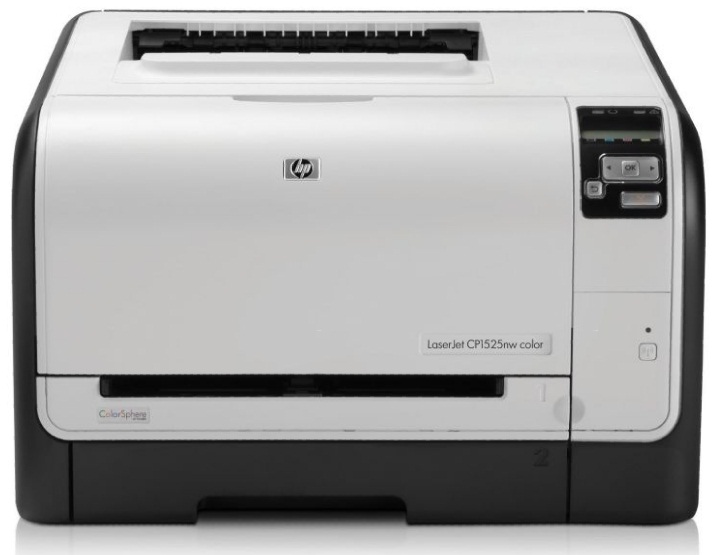
HP LaserJet CP1525nw and Linux

Just bought a new HP LaserJet CP1525nw color laser printer for my home office. My wife and I have been making due for many years with an ancient HP inkjet printer that I had got second hand. Went it comes to needing something nice printed we relied on going to Kinkos or wherever. However, even small jobs end up taking more than 30 minutes at those places, so I finally decided that we needed to upgrade. And I wanted a laser printer because of the output quality and the more-practical toner cartridges as opposed to the unreliable and low-output ink cartridges.

You have to be a bit more selective when shopping for a printer when you are running Linux. But HP provides good drivers for their printers on Linux, so I looked at their offerings and found a too-good-to-be-true color pinter priced at $200 on sale at a local office supply store. I had originally planned on getting a black-only laser printer to avoid the high-cost of color laser printers, but prices have come down considerable since I last looked a few years ago. And the concept of a small printer that is network-ready is altogether new to me, but a great feature and one that lends printers to be more and more independent of any given operating system.

The HP LaserJet CP1525nw has turned out to be a very good choice for any home/office set up, but especially one running Linux. The HP packaging certainly doesn’t make it apparent that this machine will work with Linux, but it does just fine. Below I will provide a few pointers on getting this printer up and running on your home network.

The minimal printed documentation that comes with the printer is a joke. It basically instructs you how to plug your printer into the wall, then to your computer or router and then, with an illustration, how to put the provided CD/DVD into your computer’s optical drive. It’s ridiculous. No surprise the software auto-setup is only provided for Windows and Mac OSX. Fortunately, the setup is completely unnecessary.

The No-Bullshit Way To Setup Your HP CP1525nw For Wireless Printing

  1. Unpack the printer, remove the tape and stuff and plug it into a power outlet. Check the built-in LCD monitor and wait for the printer to complete its self-setup.
  2. Connect the printer to your router via ethernet cable.
  3. At this point you might need to navigate via the LCD and printer buttons to the Network setup. It’s a simple menu tree that you navigate via clicking the arrow buttons and clicking OK. Just connect via Ethernet and use DHCP. It should connect itself to your network.
  4. Once the printer connects to your network it will display its IP address on the printer’s built-in LCD screen.
  5. Enter that IP address into a web browser on a computer that is on the same network. After you click enter you will be presented with a web-based administration interface for your printer.

  6. Click on the “Networking” tab.
  7. Click on “Wireless Configuration” on the left-hand options.
  8. Status should be “ON”
    Configuration Method should be “Join an existing network”.
    Network Name should present a list of available networks. Click on yours.
    Authentication should be set according to your network
  9. Click APPLY and disconnect the wired connection to the router. The little wireless light on the front of the printer will start blinking as it connects to your router wirelessly. Once the light is solid the printer’s new IP address should be displayed on the built-in LCD display.
  10. On your computer try adding the network-available printer. There is lots of documentation out there to do this for the most popular Linux distributions. I won’t repeat those instructions here. The HP Linux driver that’s currently available does not specifically include support for this model, but just look for the latest HP CP15XX model number and it will work fine.

That should be it. You should be able to run test prints and confirm that your printing settings are all correct. Hopefully this is helpful.

Addendum

If you like to pinch pennies like me, you probably turn off your printer when it’s sitting idle for long periods of time. I discovered that, using the DHCP mode, sometimes the printer would get a different IP address. This might not be a problem for some networks, but for me it would cause my Ubuntu desktops to automatically add a new printer at that different IP address.

To resolve this issue all you have to do is:

  1. Set a Fixed IP Address
    If you know that your two or five computers on the network are relatively low in the IP range, pick an IP address for the printer that will most likely not interfere with other systems. Something like 192.168.1.50 would probably work. Regardless, decide on a number for the printer.
  2. Configure the Printer’s IP Address
    From the on-printer LCD screen and simple navigation button, go to
    Network Setup > TCP/IP Config > Manual
    You can set the IP address with the left-right arrow and the OK button.

With that set up, your printer should be able to reconnect to the wireless network and every time you turn the printer off and on it will always have the same IP address.

Orange and Banana Spiced Wine

This batch was made from 12 lbs. of bananas, 10 cans of 100% orange juice and 6 cans of 100% white grape juice ($47) as well as some star anise and fresh ginger root. I adapted a 1-gallon recipe from Jack Keller for my 6-gallon batch (I would link to his recipe, but I found it on his “blog” page and the recipe doesn’t seem to have a unique URL of its own). I also substituted 10 cans of 100% orange juice for 48 juiced Valencia oranges. The wine is spiced with star anise and ginger root.

Continue reading “Orange and Banana Spiced Wine”